
You’re in a standup and your phone rings. Or you check on Instagram notification and a reel blasts at full volume. Or your Watch dings every time a message comes in because you silenced the phone but forgot the Watch.
You knew to silence it. You just forgot.
I forgot enough times that I stopped relying on memory.
Work Focus with a location trigger solves this. Walk into the office, phone goes silent. Walk out, it comes back. No tapping, no remembering.
But there’s a gap. The Focus Filter flips the ring/silent toggle. It doesn’t touch media volume or does the same on watch. You can setup a Shortcut that fills that gap.
The two layers
Focus Filter handles the ring/silent switch. It flips it the moment Work Focus activates, same as pressing the hardware button but automatic.
Shortcuts automation catches everything else: media volume to 0% and Watch silent mode. These are outside what Focus Filters can reach.
Both together: the phone and Watch are genuinely quiet from the moment you arrive.
Set it up
Prerequisites: iPhone running iOS 16+. Apple Watch optional, skip the third Shortcut action if you don’t have one. About 10 minutes.
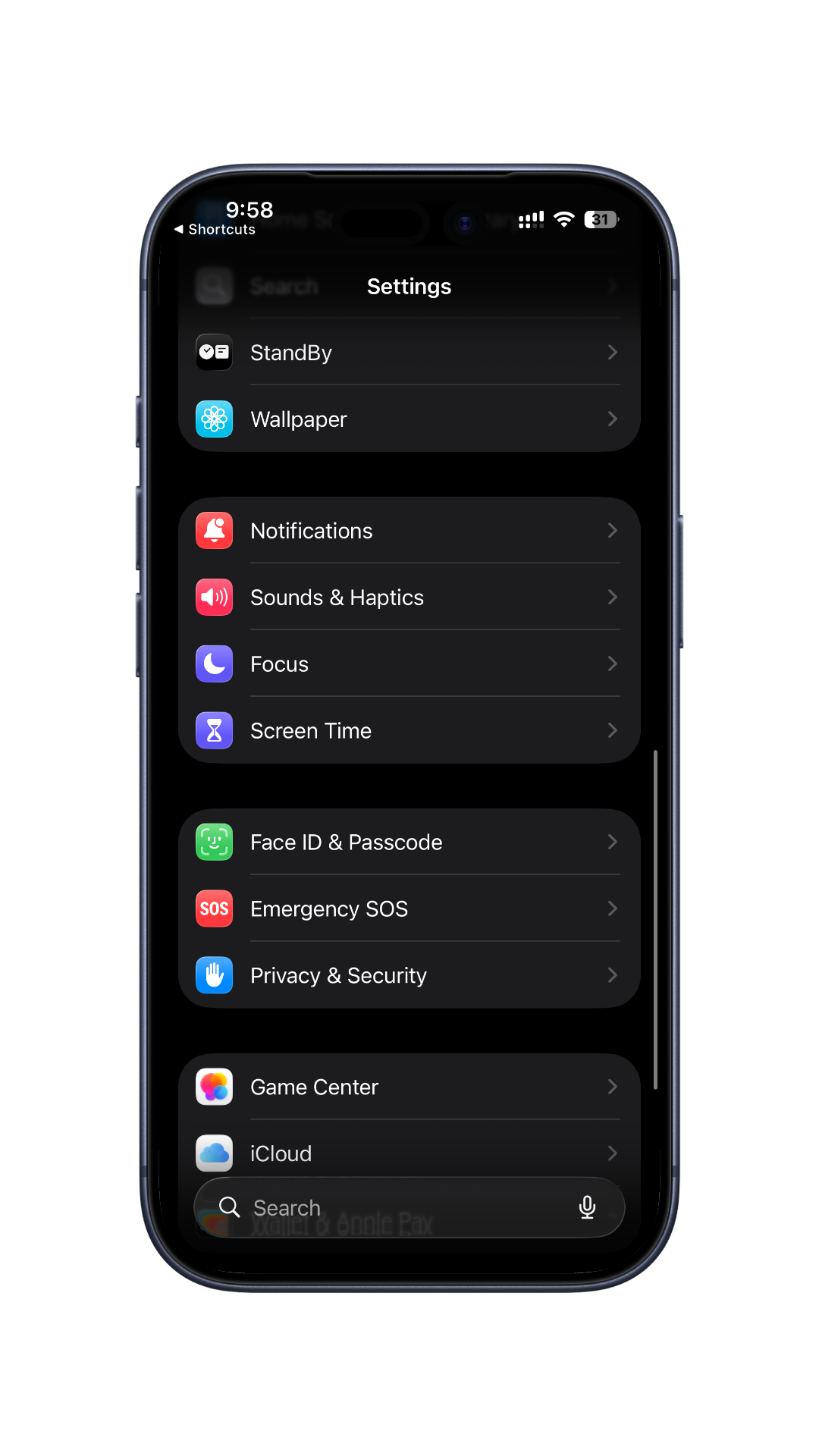
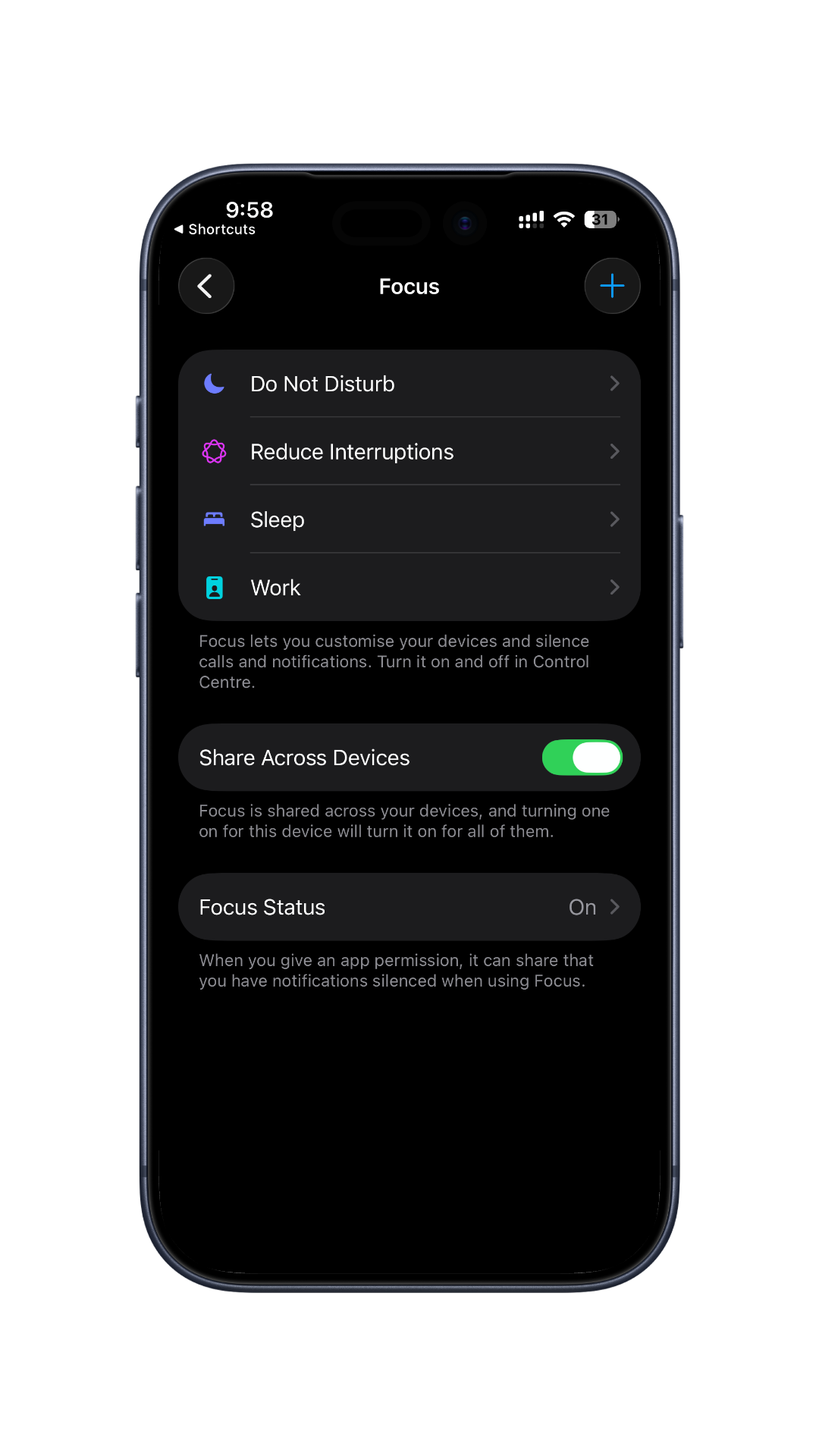
1. Open or create Work Focus. Settings → Focus → Work. If there’s no Work Focus yet, tap + and create one.
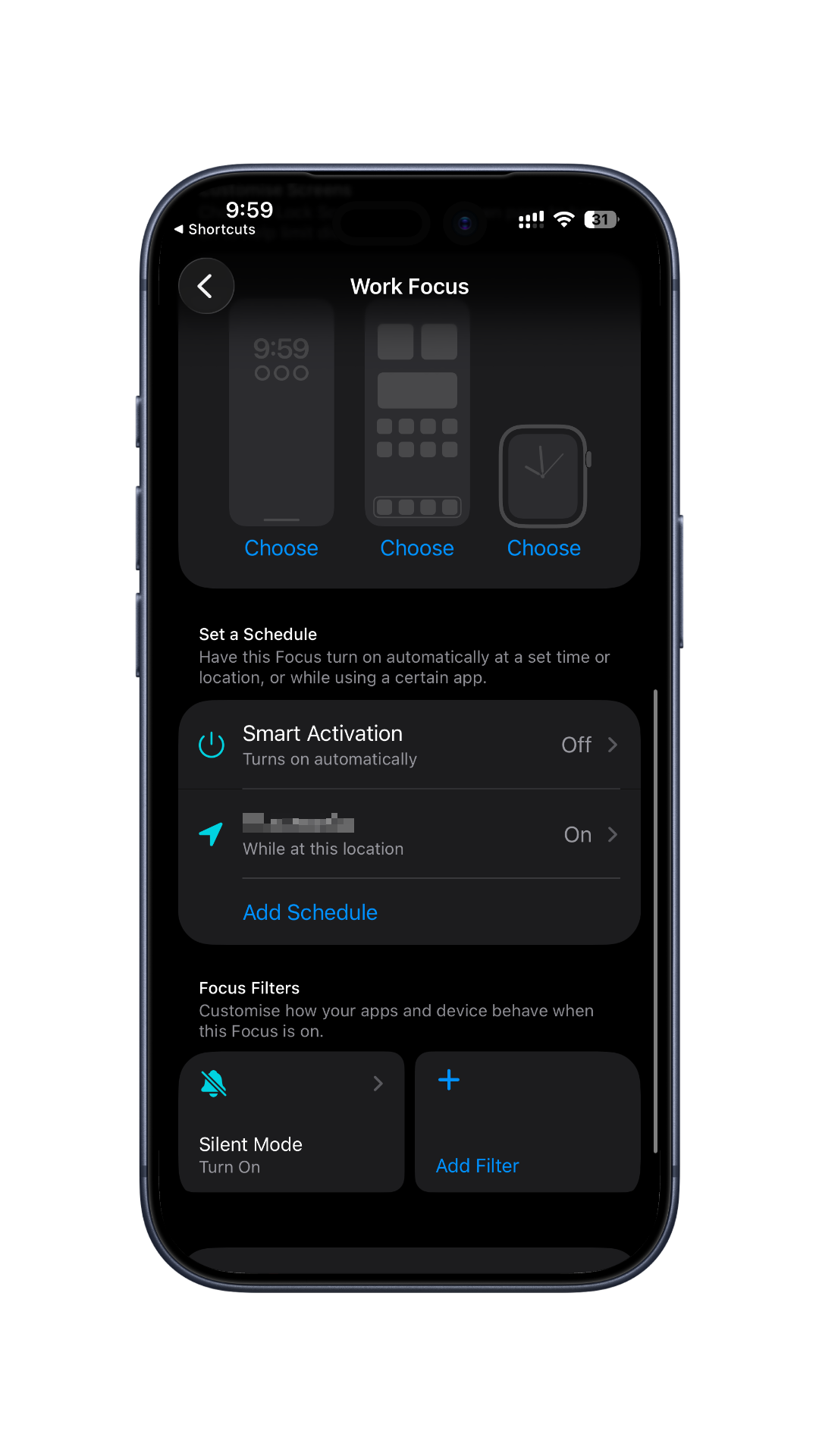
2. Add your office as a location trigger. Inside Work Focus, scroll to “Set a Schedule” → Add Schedule → Location. Search for your office address, turn it On.
3. Add a Silent Mode Focus Filter. Scroll to “Focus Filters” → Add Filter → Silent Mode → Turn On → Add. This is layer one: the ring/silent switch flips automatically when Work Focus kicks in.
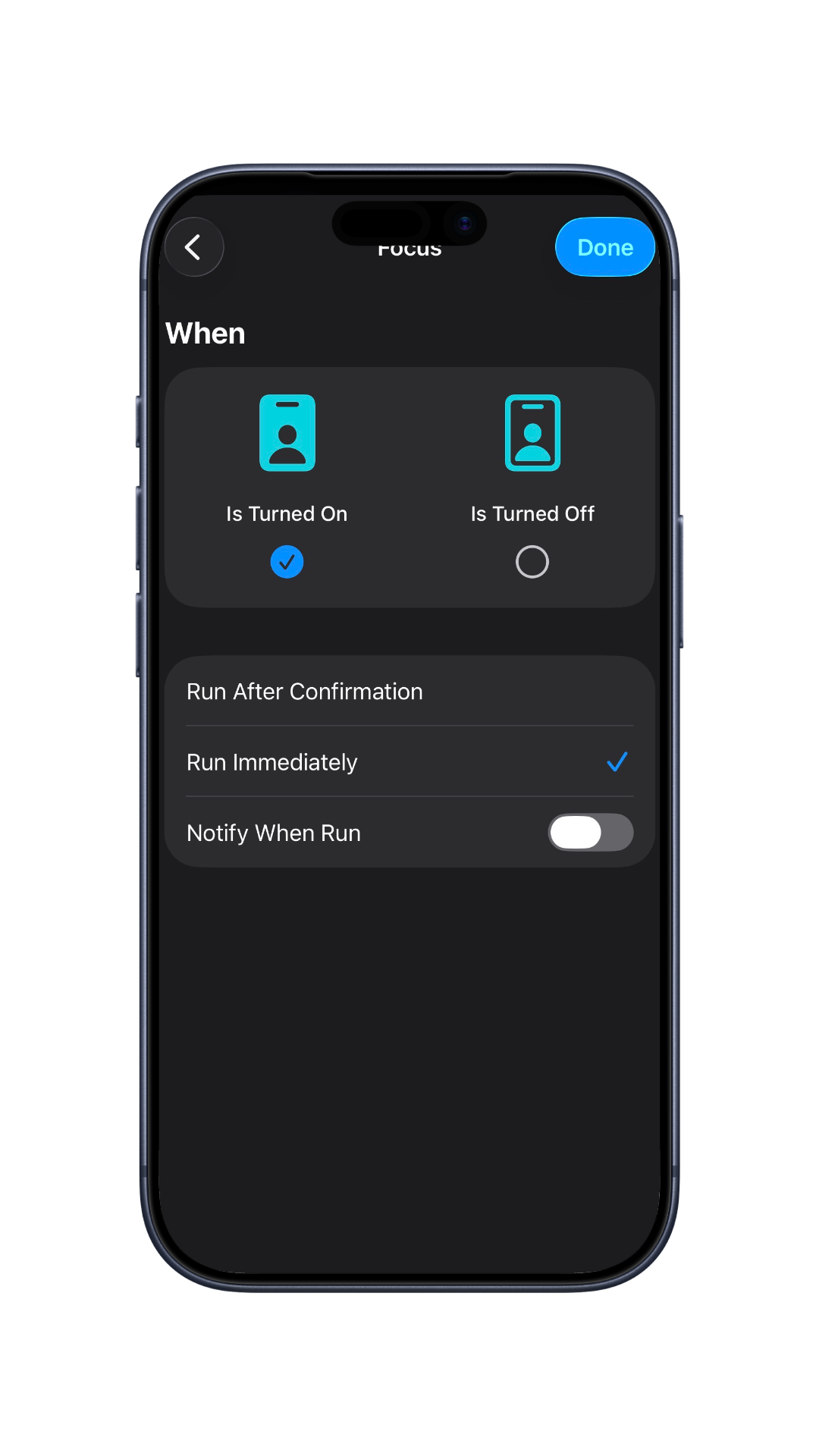
4. Create the Shortcuts automation. Shortcuts → Automation tab → + → Focus → Work → Is Turned On. Set to Run Immediately, turn off Notify When Run → Next.
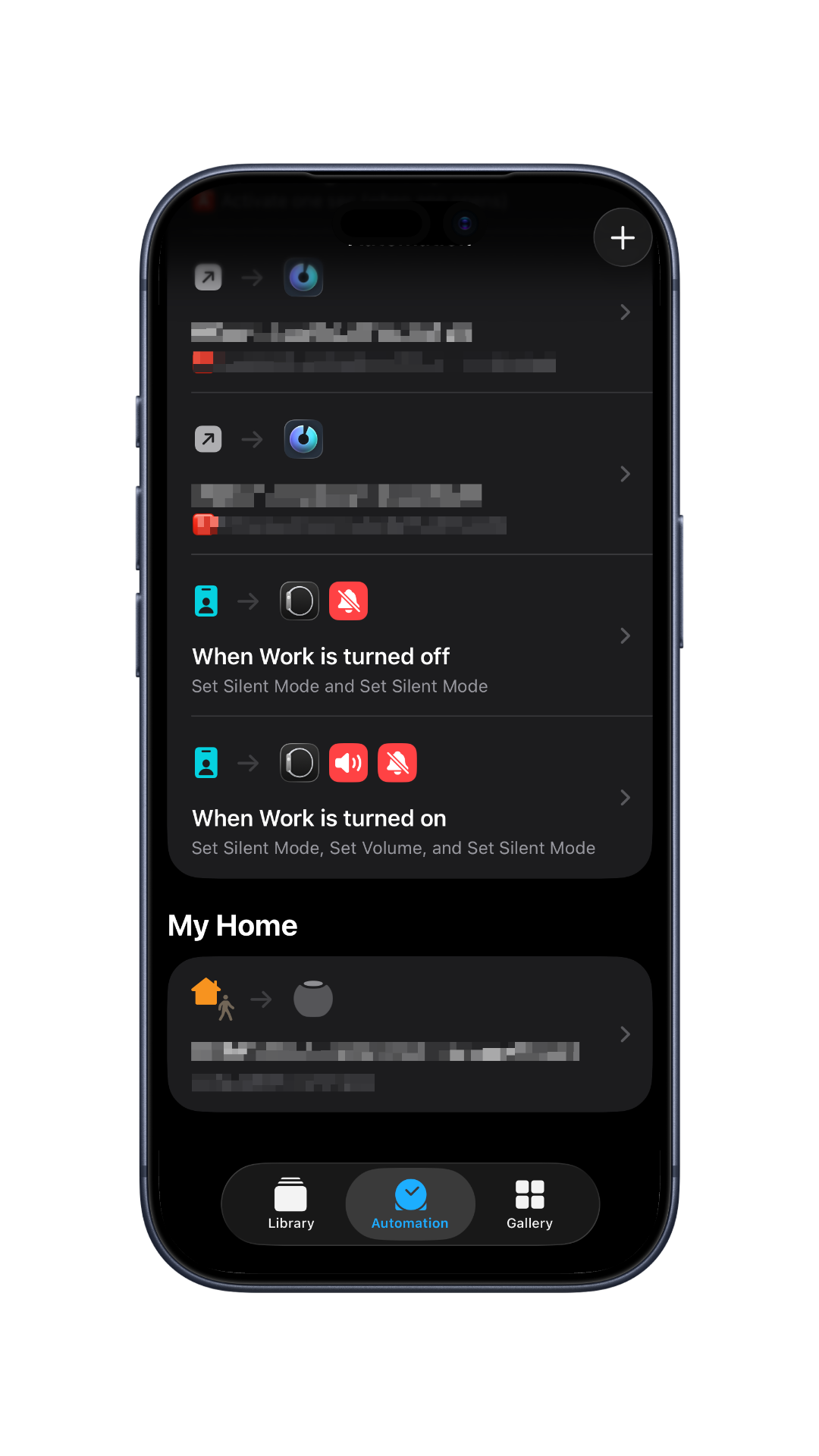
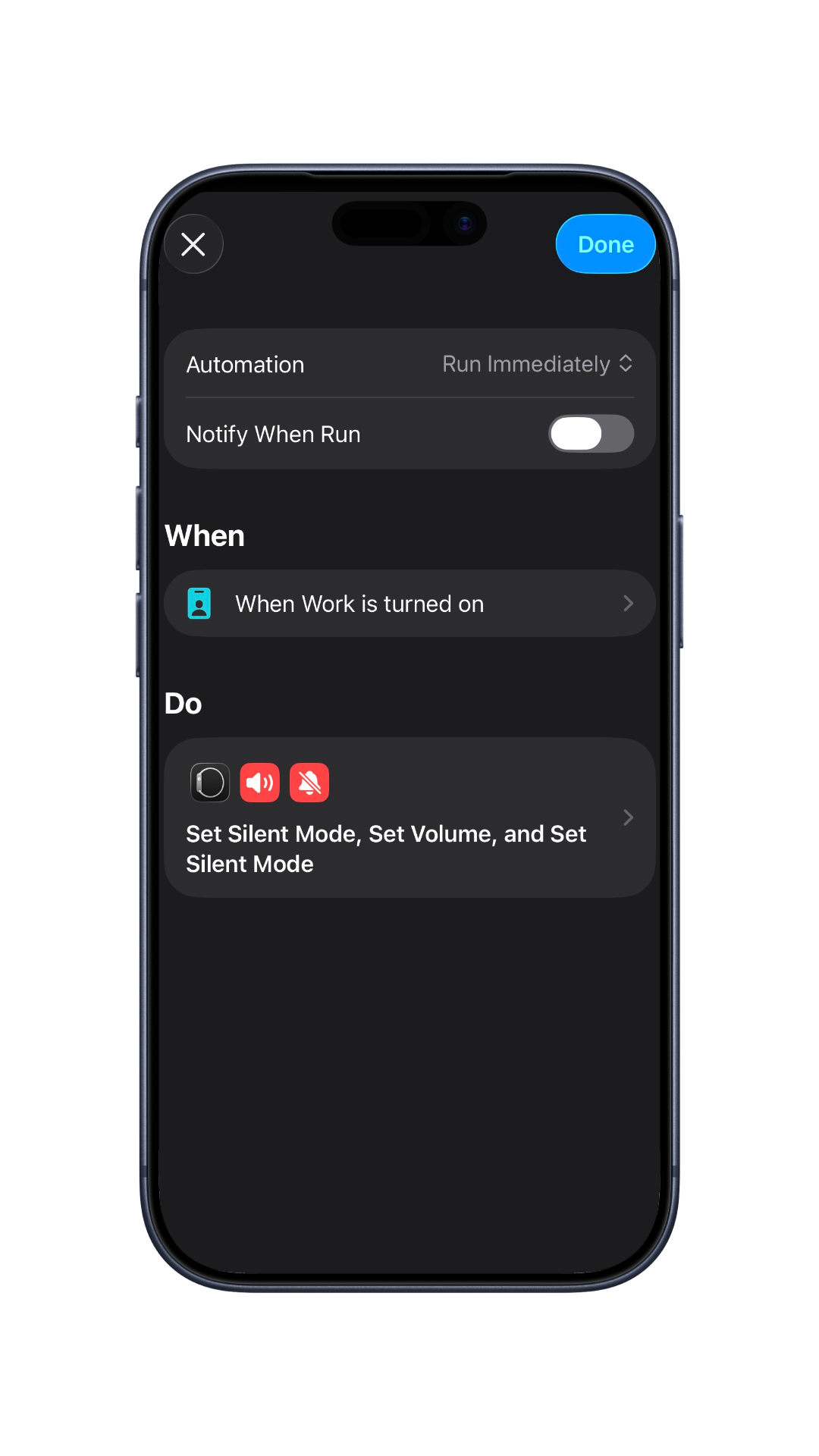
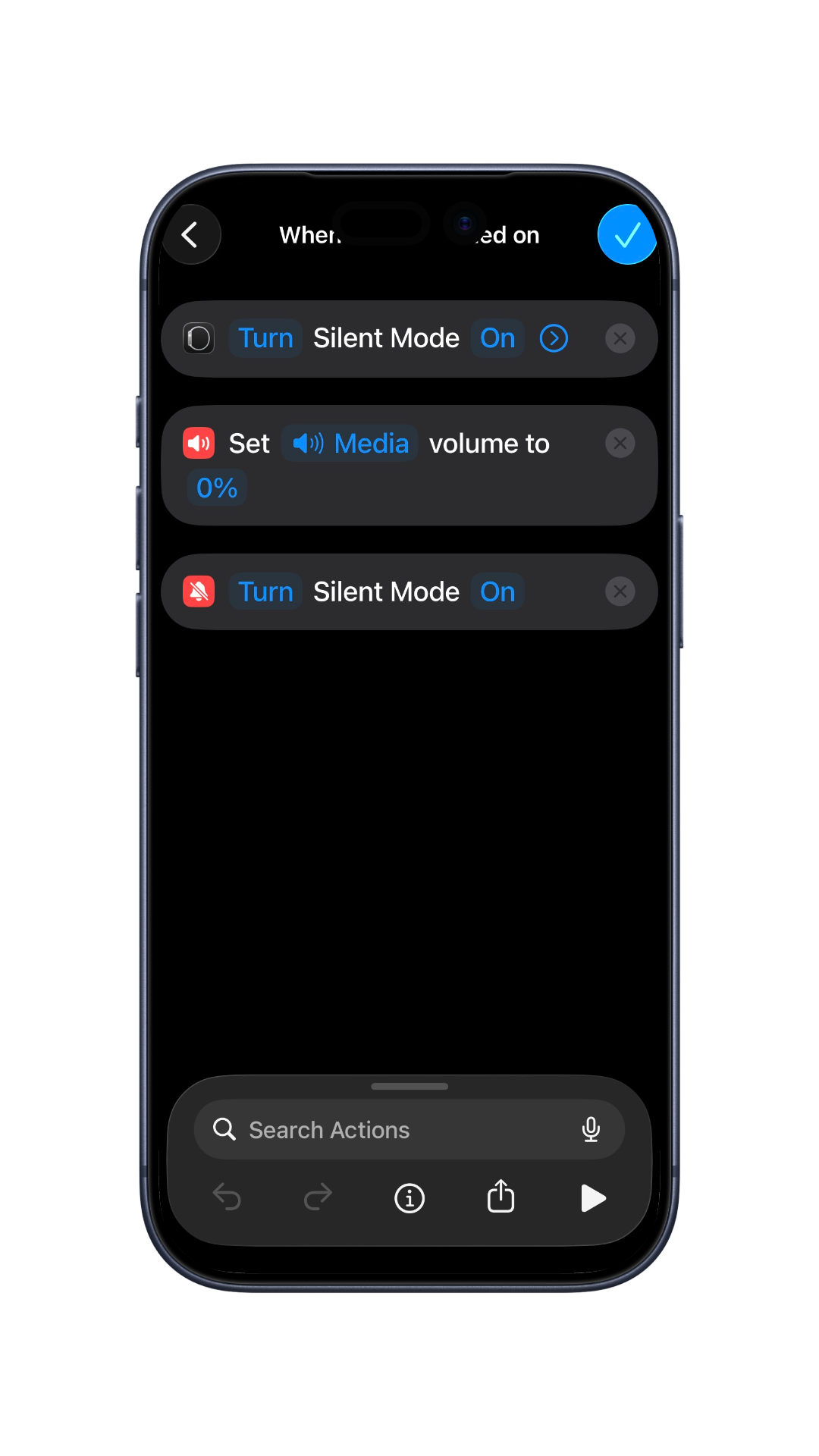
Add these three actions:
- Turn Silent Mode On (grey icon — Watch/notification silent)
- Set Volume → Media → 0%
- Turn Silent Mode On (red bell-slash icon — iPhone ring/silent switch)
Tap the checkmark. This is layer two: media volume dies, Watch goes silent.
Why both layers
The Focus Filter is fast and narrow. It flips the ring/silent switch, nothing else. Shortcuts automation is broader: media volume and Watch silent mode are separate system controls that Focus can’t reach on its own.
Running both means the phone is fully quiet, not just technically-silenced. There’s a difference between silent mode on and actually no sound.
One setup, zero maintenance
The automation costs ten minutes once. It runs invisibly every time after that. You stop trying to build the habit of silencing your phone before meetings because you never have to.
Walk in. It’s already done.