
Your to-do list doesn’t lie. It just can’t see time.
Eight tasks in a list looks the same whether you have two hours or ten. Somewhere between the morning standup and the blocked afternoon, three of those tasks just don’t happen. You carry them to tomorrow. You do it again.
I started using Structured Pro because I needed to see my day, not just list it.
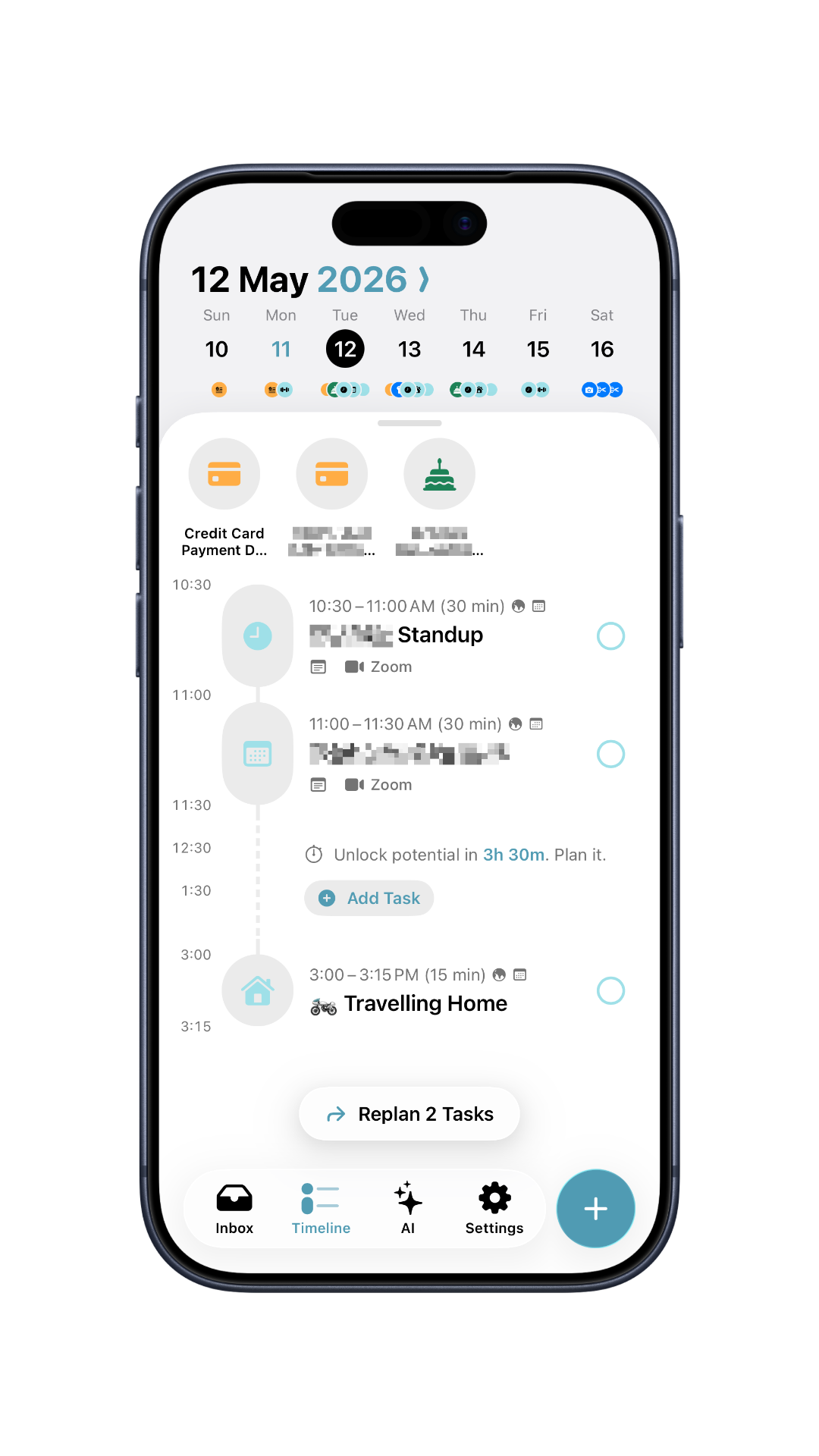
What a timeline does that a list can’t
Structured lays your tasks on an actual timeline alongside your calendar events. Blocks take up space proportional to their duration. A 45-minute meeting looks like 45 minutes, not a bullet point. The gaps become visible. You can’t promise yourself five hours of work in a three-hour window once you can see the window.
Work and personal calendars sync in with separate color themes so they stay visually distinct even when back-to-back. Seeing a Monday that’s 80% blocked in a single glance is different from reading it line by line in a calendar app.
What plugs into it
- Apple Reminders: your reminders appear automatically, timed and ready to drop onto the timeline. One toggle under Settings → Reminders on your primary device.
- Calendars: Google and iCloud both connect. Work and personal get different colors. Everything lives in one view.
- Inbox: tasks without a time slot live here until a gap opens up and you can drag them in.
- Missed tasks: if something slides past its window, Structured flags it for replanning. Nothing disappears quietly.
One thing to get right: only enable Reminders and Calendar sync on a single device (phone or Mac, not both). Turning it on across multiple devices breaks the sync. Learned that one the hard way.
Set it up in 10 minutes
Prerequisites: Structured Pro subscription. App installed on at least one Apple device.
- Download Structured from the App Store, then open it and go to Settings → Sync → Structured Cloud. Enter your email and verify with the 6-digit code.
- On each additional device, log in with the same email. Sync between devices starts automatically.
- On one device only: Settings → Reminders, toggle on. Settings → Calendars, connect your accounts. Don’t repeat this on other devices.
- Apple Watch: open Settings → Structured Cloud and log in separately. Add the complication from the watch face editor.
- Web: web.structured.app, same login.
What it costs
Free to download. Pro unlocks recurring tasks, unlimited timeline blocks, and sync.
- Monthly: $6.49/month
- Annual: $19.99/year (the sweet spot)
- Lifetime: $64.99 (one-time, no recurring cost)
If you’re eyeing the lifetime plan, don’t buy it at full price. Structured runs Black Friday deals and the occasional anniversary discount (they did 44% off on their 4th birthday). Watch r/macapps and r/iosapps for community giveaways, and check BundleHunt around deal season.
Keep your day in view
The reason this sticks is that Structured stays visible:
- Mac: float it in a corner or dock it to a secondary monitor. Your day is always there while you work.
- Watch complication: the full timeline on your wrist. One look tells you what’s now, what’s next, and how much runway you have left.
- Phone: add the widget to your home screen for a glance-friendly strip of your day. Use the app itself for morning planning and mid-day updates.
The list was telling the truth about what you wanted to do. The timeline shows you what was actually possible, and what you keep doing to yourself when you ignore it.